01
choose your DAW export folder
Install the desktop agent and point it at the folder where you render WAV or MP3 bounces.
demoparty keeps every new render organized in a cloud music library with effects and analysis.
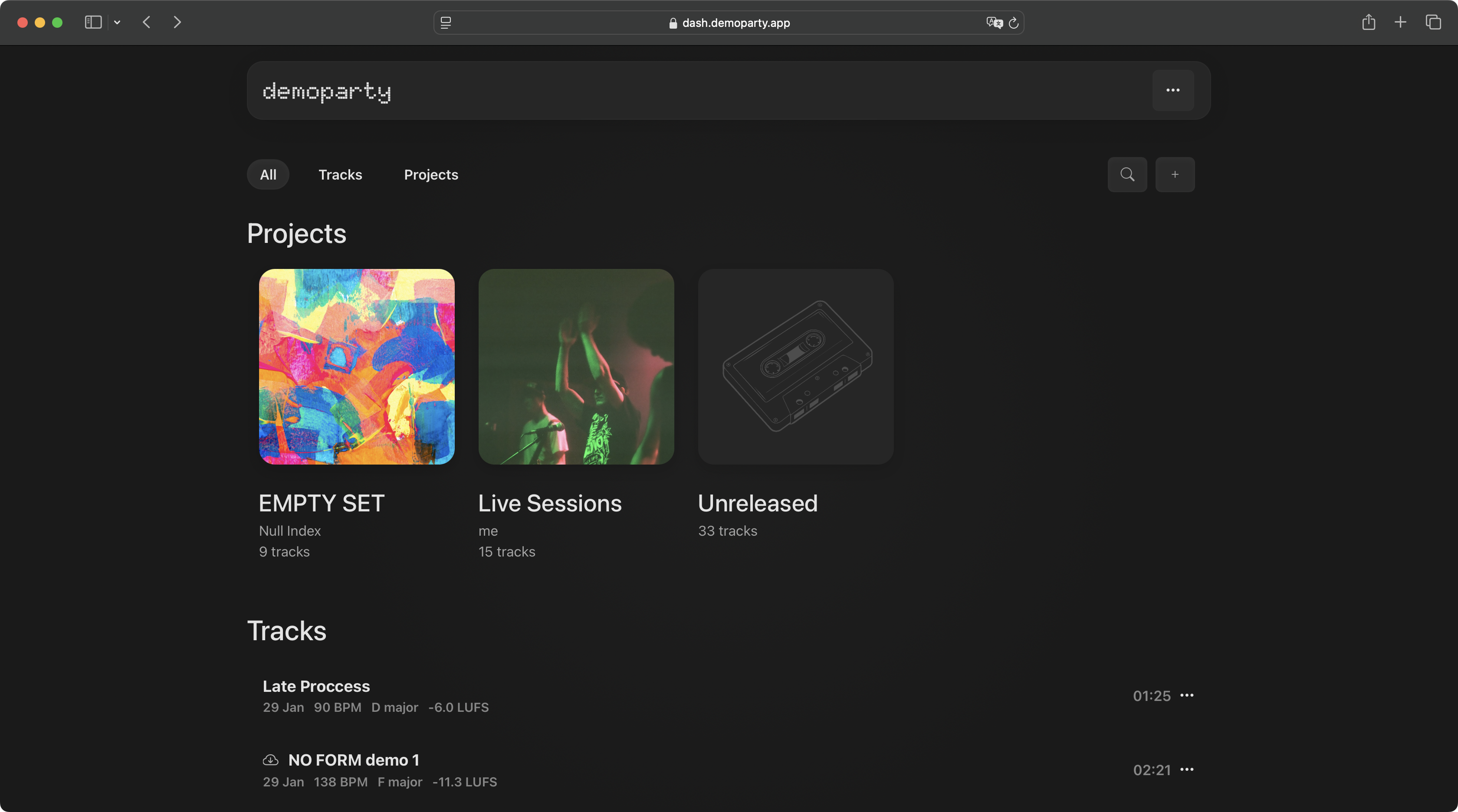
Set it up once. After that, your normal render workflow does not change.
Install the desktop agent and point it at the folder where you render WAV or MP3 bounces.
Every new render uploads automatically and gets tempo, key, loudness, and duration analysis in the background.
Open the same cloud library on web or iPhone, organize fresh demos into projects, or send a public link.
try demoparty locally in the browser or iPhone app without an account
for one synced library across your devices
No. You can use local mode in the browser or iPhone app without registration. An account is only needed for Cloud sync, desktop agent uploads, and share links.
Manual uploads, audio analysis, projects, effects, and export work locally. Your tracks stay on that device, so it is a good way to test the app before setting up Cloud.
Cloud keeps one shared library across web and iPhone. It also enables desktop agent uploads, persistent links, and 100GB of storage for tracks.
No. Auto-upload is optional and only part of Cloud. If you prefer, you can keep using local mode or upload files manually.
demoparty agent is a small desktop app for auto-upload. It watches the folder you choose and uploads new WAV and MP3 renders to your Cloud library. It is optional and you can not use it if you want. You can install agents on as many devices as you want. Available for Windows and Mac.
The iPhone app is standalone and can keep its own local library, just like local mode on the web. Cloud is only needed when you want the same tracks synced between web and iPhone.
Yes. Cloud users can create public links for tracks and projects, then manage those links from the app.
connect with the developer and other demoparty users, get help, share your work, and stay updated on new features.